Original Broo, one of the most talented kit makers, has released an amazing update for the FIFA World Cup 2026, featuring the next World Cup's official sleeve badges
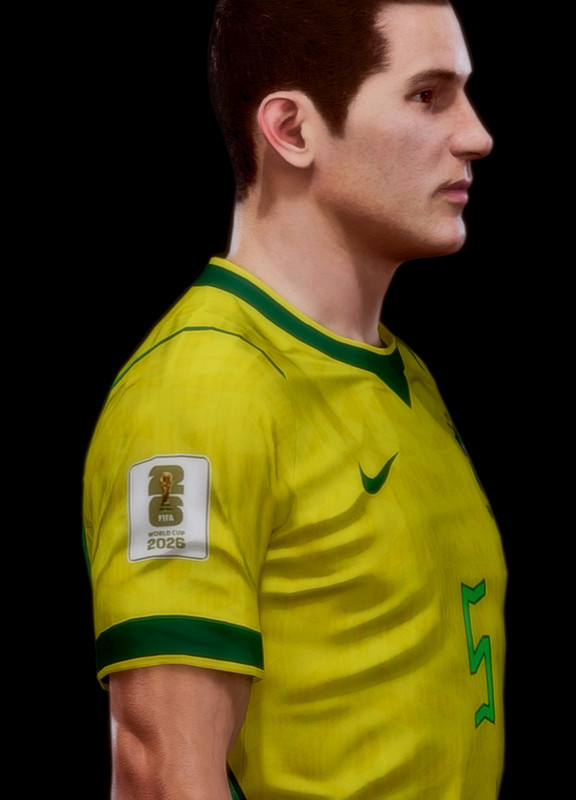
✔ 4 official badge variants
✔ 156 kits updated
✔ Badge & No Badge versions included
Professional Kit Importing: From PNG to FTEX for PES 2021
To achieve the best visual results and ensure the game engine recognizes your textures, you must follow a specific conversion workflow. This process transforms a standard PNG into a game-ready FTEX file through a mandatory DDS intermediate step.
Required Tools
- Graphic Editor with DDS Plugin: Photoshop (with Intel/NVIDIA DDS plugin) or GIMP.
- PES 2021 FTex Converter: To finalize the conversion from DDS to FTEX.
- Sider 7 & Kitserver: For in-game implementation.
Step-by-Step
1. Convert PNG to DDS
Open your kit template in your graphic editor. When saving your work, you must choose DDS (DirectDraw Surface) as the format. It is crucial to use the correct compression settings: usually BC7 (Fine) or DXT5 (Interpolated Alpha) with mipmaps disabled to maintain sharpness. This step creates the raw texture data the game requires.
2. Convert DDS to FTEX
Now, open the PES 2021 Ftex Converter. Drag your newly created Kit.dds file into the tool. The converter will wrap the DDS data with the proper Fox Engine headers, generating a Kit.ftex file. This ensures the game reads the file as a native Konami asset rather than a generic image.
3. Kitserver Directory Setup
In your Sider folder, go to content \ kitserver. Create or locate your team folder. Inside, organize your kit subfolders:
- pa: Player Home
- pb: Player Away
- ga: Goalkeeper Home
For instance, in Football Life Brazil kit is placed in this path: content \ kit-server \ FIFA \ CONMEBOL \ Brazil \ p1 \u0045p1.ftex
4. Deploying Assets
Place the Kit.ftex inside the desired subfolder (like pa). By using FTEX instead of raw PNGs, you avoid transparency bugs and ensure that kit "shaders" like fabric textures and sweat effects render perfectly.
5. Mapping and Configuration
Ensure the team is correctly listed in your map.txt and that each folder contains a valid config.txt to manage collar types and name/number placements.
6. Testing In-Game
If the kit appears black or distorted, double-check your DDS compression settings in Step 1, as incorrect BC/DXT formats are the most common cause of errors.